10 Time Tracking Tips That Actually Work
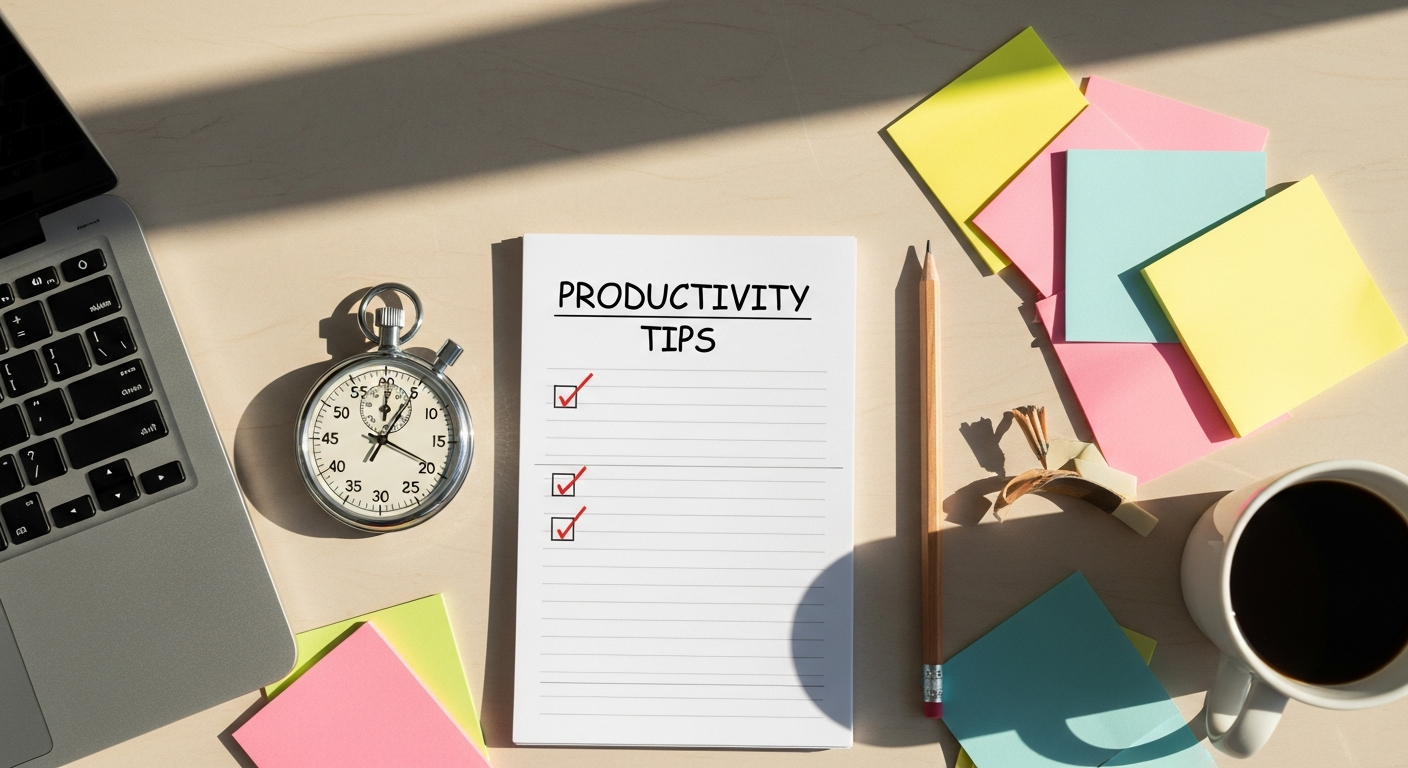
Time tracking shouldn't feel like a chore. These 10 practical tips will help you make time tracking a sustainable habit that actually delivers value — from starting simple to using data for real improvement.
Quick answer: The best time tracking tips are simple: start with a small set of categories, track as you work instead of at day’s end, review your data weekly, and use it to adjust plans rather than chase perfect accuracy. Choose a tool that fits your workflow and automates what it can.
Time tracking shouldn’t feel like a chore. When done right, it’s a powerful tool that helps you understand where your time goes, improve your productivity, and make better decisions about how you work.
But let’s be honest—most people struggle with time tracking. They start enthusiastically, forget to track after a few days, and eventually give up altogether. Sound familiar?
The good news: it doesn’t have to be this way. These 10 practical tips will help you make time tracking a sustainable habit that actually delivers value—not just another task on your to-do list.
Why Time Tracking Matters
Time tracking is more than just logging hours. It’s about understanding where your time goes and making intentional choices about how you spend it. The benefits are real:
- Improved productivity: Awareness of how you spend time naturally leads to better choices
- Accurate billing: Never lose revenue to forgotten billable hours again
- Better estimates: Historical data makes project planning far more accurate
- Work-life balance: See when you’re overworking before burnout hits
- Data-driven decisions: Stop guessing, start knowing where your time goes
The key insight: You can’t improve what you don’t measure. Time tracking is the measurement tool that makes everything else possible.
1. Start Simple
Don’t try to track every minute of your day from the start. Begin with your most important tasks and gradually expand your tracking habits.
Why This Works
The biggest mistake people make with time tracking is trying to be too detailed from day one. They create 47 different project categories, try to track every single task, and burn out within a week.
Start here instead:
- Track just your top 3-5 projects or clients
- Use broad categories (e.g., “Client Work,” “Admin,” “Meetings”)
- Don’t worry about perfect accuracy—rough tracking is better than no tracking
Real Example: Sarah, a freelance designer, started by tracking only three categories: “Client Projects,” “Business Development,” and “Administrative.” After two weeks, she discovered she was spending 40% of her time on admin tasks—way more than she realized. This insight alone was worth the effort.
Action Step: This week, track only your 3 biggest time commitments. Use just three categories. That’s it. Build the habit before adding complexity.
2. Use the Right Tools
A good time tracking tool can make the difference between success and failure. Look for features like one-click timers, project categorization, and reporting.
What Makes a Tool “Right”
Not all time tracking tools are created equal. The right tool should make tracking easier, not harder.
Must-have features:
- Automatic tracking: Runs in the background, captures time without constant input
- One-click timers: Start tracking with a single click, not a 5-step process
- Project/task categorization: Easy to organize time by client, project, or task type
- Intuitive reporting: See where your time goes without building complex formulas
- Multi-platform: Works on desktop, mobile, and web
The WorkSnaply Advantage: Once you start the timer it keeps running in the background. Privacy-first design respects your autonomy. Team visibility without micromanagement. Reports you can export as CSV, PDF or Excel for billing.
Action Step: If you’re using a tool that feels clunky or requires too much manual effort, try WorkSnaply free for 14 days. See if background tracking makes the difference.
3. Track in Real Time
Don’t wait until the end of the day to log your hours. Real-time tracking is far more accurate and requires less effort.
The End-of-Day Problem
We’ve all done it: worked all day, then sat down at 5 PM trying to remember what we did. The result:
- Inaccurate time data (you’re guessing)
- Missing time (forgot that 30-minute task)
- Extra work (reconstructing your day is exhausting)
- Frustration (this is why people quit time tracking)
How to Make Real-Time Tracking Stick
Technique 1: One-Click Start — Keep your time tracking tool easily accessible. Pin it to your taskbar, use keyboard shortcuts.
Technique 2: Task-Switching Ritual — Make starting the timer part of switching tasks: close previous work → start timer for new task → begin new work. After 2 weeks, this becomes automatic.
Technique 3: Use Automatic Tracking — Tools like WorkSnaply keep tracking in the background once you start the timer, with optional app and website tracking. No manual timer management needed.
Illustrative example: A developer who reconstructs their timesheet from memory at the end of each day spends time on it and usually gets the estimates wrong. Automatic tracking removes the daily reconstruction and keeps the data closer to what actually happened.
4. Review Weekly
Set aside 15 minutes each week to review your time data. Look for patterns, inefficiencies, and opportunities to improve.
The 15-Minute Weekly Review
Every Friday at 4 PM (or your preferred time), spend 15 minutes on this:
Minutes 1-5: High-Level Overview
- Total hours worked this week
- How does it compare to target?
- How much time on high-priority vs. low-priority work?
Minutes 6-10: Pattern Recognition
- Which day was most/least productive? Why?
- Did meetings consume too much time?
- Any surprise time-sinks?
Minutes 11-15: Action Planning
- What should you do more of next week?
- What should you do less of?
- One commitment for next week
Illustrative example: Weekly reviews might show you are most productive on certain mornings. Scheduling your most important deep work for those times and moving meetings to slower slots is a simple way to work with your natural rhythm.
5. Set Time Budgets
Allocate specific hours to each project or task category. This helps prevent scope creep and keeps you focused.
What is a Time Budget?
A time budget is like a financial budget, but for hours instead of dollars. You decide in advance how much time you’ll allocate to different activities.
Example time budget (40-hour week):
- Client Projects: 28 hours (70%)
- Business Development: 6 hours (15%)
- Administrative: 4 hours (10%)
- Learning/Growth: 2 hours (5%)
Why Time Budgets Work
- Prevents scope creep: You know when a project is consuming too much time
- Forces prioritization: Limited time means you focus on what matters
- Reveals imbalances: “I budgeted 5 hours for admin but spent 12—something’s wrong”
- Creates boundaries: “This project is at budget—time to wrap up”
Illustrative example: Someone budgets a few hours a week for email and admin, and time tracking shows they spend far more. Batching email into set times and automating recurring tasks can pull that number down and free hours for billable or deep work.
6. Batch Similar Tasks
Group similar activities together and track them in focused blocks. This reduces context-switching and makes your time data more meaningful.
The Context-Switching Tax
Every time you switch tasks, your brain needs time to refocus. Every switch has a cost: it takes time to get back into a task after an interruption. If you’re bouncing between email, coding, meetings, and admin all day, you’re paying a real productivity tax.
What is Task Batching?
Task batching means grouping similar activities and doing them all at once in a dedicated time block.
Instead of: Check email at 9 AM, 10 AM, 11 AM, 1 PM, 3 PM, 4 PM (6 interruptions)
Do this: Email batch: 9:00-9:30 AM and 3:30-4:00 PM (2 focused sessions)
Categories to Batch:
- Email & Communications: Check/respond 2-3 times per day in focused 30-minute blocks
- Meetings: Group on specific days or cluster in morning/afternoon blocks
- Deep Work: Protect 2-4 hour uninterrupted blocks, morning when you’re freshest
- Administrative: One 1-2 hour block per week (Friday PM works well)
Illustrative example: Someone who tracks their time may be surprised by how often they switch tasks in a day. Grouping similar work into set blocks cuts the switching and usually leaves the day feeling calmer.
7. Use Categories Wisely
Create a clear system of categories or tags, but don’t overcomplicate it. 5-10 main categories are usually enough.
The Goldilocks Problem
Too few categories: “I spent 40 hours on ‘work’—not helpful.” Too many categories: “Let me choose between 47 different project codes”—you’ll give up. Just right: 5-10 main categories that are meaningful but manageable.
How to Design Your Category System
Principle 1: Match Your Goals
- If billing clients: Categories = Client names or projects
- If managing workload: Categories = Major responsibility areas
- If improving productivity: Categories = Activity types (Deep Work, Shallow Work, Meetings)
Principle 2: Use Hierarchy — Most time tracking tools support project > task hierarchy. Start with broad categories and add task-level detail only if you need it.
Principle 3: Test and Iterate — After 2-3 weeks, review: Are categories too broad? Split them. Too narrow? Combine them. Not using some? Delete them.
Common Mistakes: Too granular from day one. Overlapping categories. Using vague categories like “Stuff” or “Other.” No consistency week to week.
8. Don’t Obsess Over Perfection
Aim for 80-90% accuracy, not 100%. Perfect time tracking is impossible and trying for it will burn you out.
The 80/20 Rule
80% accuracy gives you:
- Reliable patterns
- Good project estimates
- Accurate client billing
- Useful productivity insights
Trying for 100% accuracy costs you:
- Constant stress and guilt
- Wasted time agonizing over 5-minute gaps
- Burnout and eventual abandonment of tracking
- Diminishing returns (the last 20% adds minimal value)
What “Good Enough” Looks Like: Missed tracking a 30-minute task once this week? Fine. Approximate start/stop times rounded to nearest 15 minutes? Fine. Small gaps in your timesheet? Fine. Just approximate and move on.
Illustrative example: Someone who agonizes over whether a task took 32 or 37 minutes will likely quit within weeks. Reframing the goal from “perfect accuracy” to “useful patterns” keeps the habit alive, and approximate data is usually enough to act on.
9. Integrate with Your Workflow
Make time tracking part of your existing process, not a separate task. Integrate with tools you already use daily.
The Integration Principle
The best time tracking system is one you actually use. And you’re most likely to use a system that fits seamlessly into how you already work.
Integration Strategies:
- Connect to Project Management Tools: Use a time tracker that integrates directly with Asana, Trello, Jira. Start timers right from your task manager.
- Calendar Integration: Sync with Google Calendar or Outlook. Meetings automatically tracked and categorized.
- Browser Extension: Track time directly in tools like Gmail, Notion, GitHub without leaving your work.
- Desktop/Mobile Apps: Desktop app tracks based on which app you’re using. Automatically categorizes: VS Code = Coding, Chrome = Research, Slack = Communication.
- Automation Rules: “If I open Figma, start tracking Design work.” “If I join a Zoom call, track as Meeting.”
Illustrative example: Someone who works across several tools every day will forget to start timers. Automatic tracking that follows app usage removes most of that effort.
Eliminating Friction Points:
- “I have to remember to start the timer” → Start the timer once and let it run in the background
- “Switching between tools is annoying” → Browser extension or tool integrations
- “I don’t know which category to choose” → Auto-categorization rules
- “It interrupts my flow” → Background tracking that doesn’t require interaction
10. Use the Data to Improve
Time tracking is only valuable if you actually use the insights. Look for ways to optimize your schedule, delegate low-value work, or improve estimates.
From Data to Action
Here’s the harsh truth: most people track time but never act on the insights. They build a beautiful dataset and then… ignore it. Don’t let this be you.
How to Turn Data into Improvement
Step 1: Identify Patterns — Look at 2-4 weeks of data. When are you most focused? What derails you? How much time is high-value vs. low-value work?
Step 2: Prioritize One Improvement — Don’t try to fix everything at once. Pick the biggest issue:
- “I spend 12 hours per week in meetings” → Cut meeting time by 30%
- “I’m most productive 9-11 AM but schedule meetings then” → Protect morning focus time
- “I spend 6 hours per week on low-value admin” → Delegate or automate
Step 3: Make One Change — Based on your insight, change one thing about how you work.
Step 4: Track the Impact — After making a change, track for 2-3 weeks. Did it help?
Step 5: Repeat Monthly — Every month: review data, identify one thing to improve, make one change, track results. After 6 months, you’ll have made 6 improvements. Compound effect is massive.
An Illustrative Example
The following is a hypothetical example (not a real customer; the numbers are only for illustration). Imagine a freelance developer, Alex, who tracked time for 3 months but never looked at the data. Then he spent 30 minutes reviewing it:
- Finding 1: 12 hours/week on non-billable admin → Hired a part-time assistant → Freed up 10 billable hours/week at $100/hour = $1,000/week increase
- Finding 2: 15 hours/week in meetings → Implemented “office hours” → Meeting time dropped to 8 hours
- Finding 3: Most productive 9-11 AM and 2-4 PM → Scheduled all coding during these blocks
Combined impact: more billable work and less wasted time from the same hours, which is the point of reviewing your own data.
Putting It All Together
These 10 tips aren’t meant to overwhelm you. Start with just 2-3 that resonate most with your current challenges.
- If you’re just getting started: Start with tips #1 (Start Simple) and #2 (Use the Right Tools)
- If you’re struggling with consistency: Focus on tips #3 (Track in Real Time) and #9 (Integrate with Workflow)
- If you’re tracking but not improving: Double down on tips #4 (Review Weekly) and #10 (Use the Data)
- If you’re tracking for a team: Emphasize tips #7 (Categories) and #5 (Time Budgets)
The 30-Day Time Tracking Challenge
Ready to make time tracking actually work?
- Week 1: Install WorkSnaply, set up 5-7 categories, track everything
- Week 2: Review your first week of data, identify one pattern, continue tracking
- Week 3: Make one change based on your insights, track the impact
- Week 4: Do your first formal weekly review, commit to the habit
After 30 days, you’ll have a sustainable time tracking habit and real insights about your work.
Ready to Make Time Tracking Work for You?
WorkSnaply makes time tracking effortless:
- Background tracking once the timer is started
- Privacy-first design (you control what’s tracked)
- One-click reports (insights without spreadsheets)
- Team reports (time visibility without surveillance)
- Slack integration (notifications where your team works)
Start your free 14-day trial—no credit card required.
Related reading
- What Is a Timesheet? Types, Benefits & Best Practices Explained
- Manual vs Automatic Time Tracking: Which is Right for Your Team?
- The Freelancer's Guide to Time Tracking: Boost Income & Reclaim Your Time
- 10 Best Employee Time Tracking Software in 2026
Frequently Asked Questions
How detailed should my time tracking be?
Start with 5-7 broad categories. Add detail only if you need it.
Should I track personal time like breaks?
Only if you want to. Most people track work time only.
What if I forget to track something?
Make your best estimate and move on. 80% accuracy is plenty.
Is automatic tracking as accurate as manual?
Usually more accurate, because you don’t forget. Tools like WorkSnaply track time while the timer is running, so note offline work separately.
How long until I see results?
Many people notice useful patterns within a few weeks. Bigger improvements come from acting on the data consistently over time.
How often should I review my time data?
A short weekly review of about 15 minutes is enough to spot patterns and adjust next week’s plan.
Should I use manual or automatic time tracking?
It depends on your work. Manual is flexible and simple; automatic captures more with less effort. See our manual vs automatic time tracking guide to decide.